If you are using NextGen's native document storage, you can move files and folders wherever they need to go — across folders, or even across different matters — without the hassle of downloading and re-uploading anything.
Access a Document
To access a document:
From Matter Details
- From the left navigation panel, click Matters.
- On the Matters screen, double-click a matter or single-click it, click on the three dots to the far right of the row and from the drop-down, click View.
- From the tabs atop the Matters Summary section, click Documents.
- In the Documents screen, single-click the applicable subfolder.
The folder's contents display on the screen.
From Documents
- From the left navigation panel, click Documents.
- On the Documents screen, single-click the applicable matter's folder.
The matter's folder structure displays. - Click the subfolder within which the document is located.
The folder's contents display on the right half of the screen.
Move Files and Folders
Multiple Files and Folders
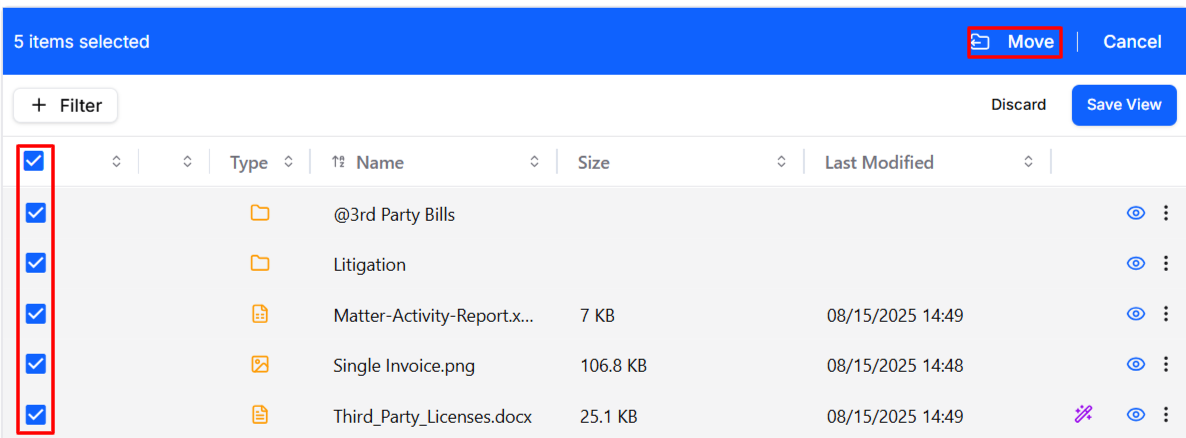
To move multiple files and folders within the application:
-
Navigate to your document screen from Documents or Matters > Documents.
-
For multiple documents: On the documents screen, check the box(es) beside the folders/documents you wish to move.
-
From the toolbar, click Move.
-
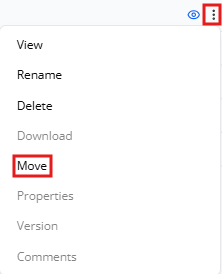
For one document: Select the document and click the three dots at the end of the row.
-
From the drop-down, select Move.
-
-
In the window that opens, enter the name of the matter to which you wish to move the documents.
Note: You can move the documents to one of the folders of the same matter listed below, if desired.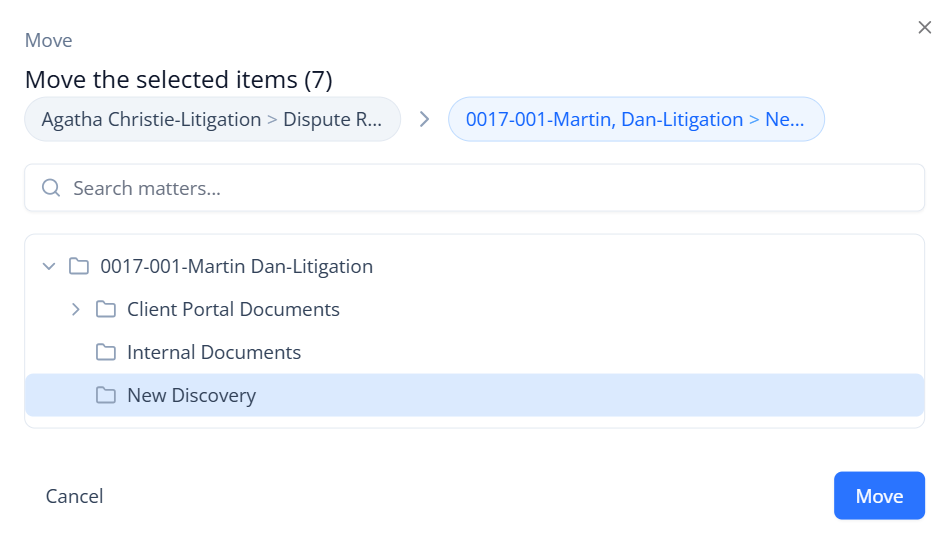
-
From the folder list that displays below, click on the folder where you want to move the documents/folders.
-
Click Move.
Your documents will be moved to the selected matter.